

Google Maps Insights Engine Overview
The Google Maps Insights Engine extracts comprehensive location information from Google Maps, including address details, coordinates, nearby businesses, and street view data.Engine Inputs
The Google Maps Insights Engine Configuration has the following parameters:- address: required. The address or location to search for on Google Maps.
- instruction: required. Instructions describing what information to extract about the location.
- output_schema: required. JSON schema defining the structure of the output. Follows the standard JSON schema specification.
- model: optional. The AI model to use (default:
gpt-4.1-2025-04-14). - near_by_business_types: optional. Comma-separated list of business types to search for nearby (e.g., “restaurant,cafe,bank”). Leave empty to search all types.
- near_by_radius: optional. Radius in meters to search for nearby places (default: 15.0, max: 1000.0).
- near_by_number: optional. Maximum number of nearby places to return (default: 5).
- include_street_view: optional. Whether to include street view imagery (default: False).
Engine Output
The output will be a JSON value matching the structure specified in the output_schema, typically including:- Location name and formatted address
- Geographic coordinates (latitude/longitude)
- Nearby places and businesses
- Place details and ratings
- Street view imagery (if enabled)
Example Usage
1
Create an Agent
Click on the “Add Agent” button in the top right corner of the Agents page.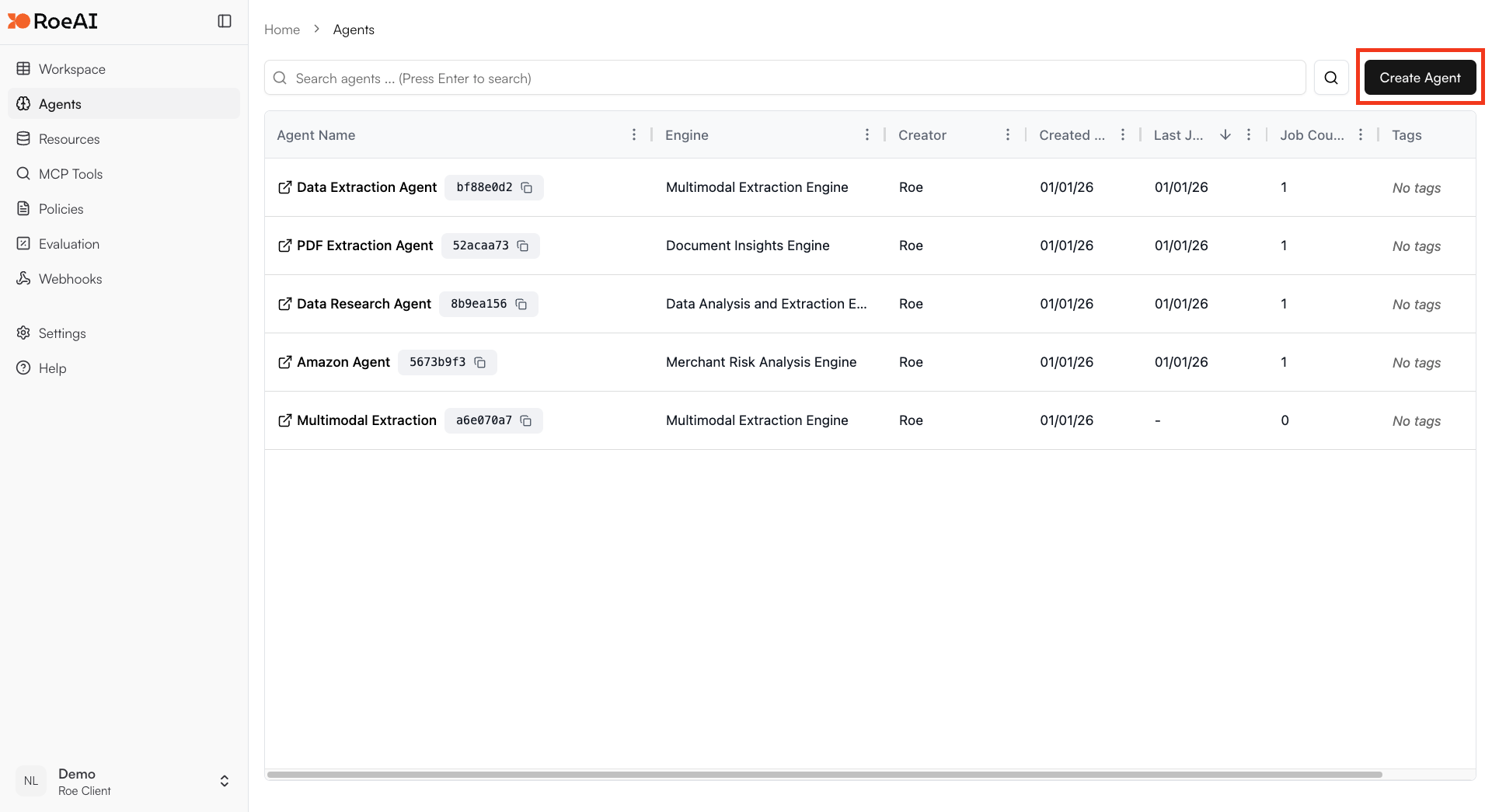
2
Select the Google Maps Insights Engine
3
Configure the engine
$ starts a template string
- address: $address
- instruction: $instruction
- model: gpt-4.1-2025-04-14
- near_by_radius: 15.0
- near_by_number: 5
- include_street_view: False
- output_schema: Copy and paste the JSON schema below:
4
Create the Agent
Hit the Create button.
5
Run a job
Create a new job and provide:
- address: “1600 Amphitheatre Parkway, Mountain View, CA”
- instruction: “Extract the location name, full address, coordinates, and list any notable nearby places”
Use Cases
- Location verification: Verify business addresses and get coordinates
- Competitive analysis: Find nearby competitors and businesses
- Site assessment: Evaluate locations for real estate or business purposes
- Geographic enrichment: Add location data to customer or business records