> ## Documentation Index
> Fetch the complete documentation index at: https://docs.roe-ai.com/llms.txt
> Use this file to discover all available pages before exploring further.
# Quickstart
> Work with your unstructured data at scale in under 5 minutes
## Upload Your Unstructured Data
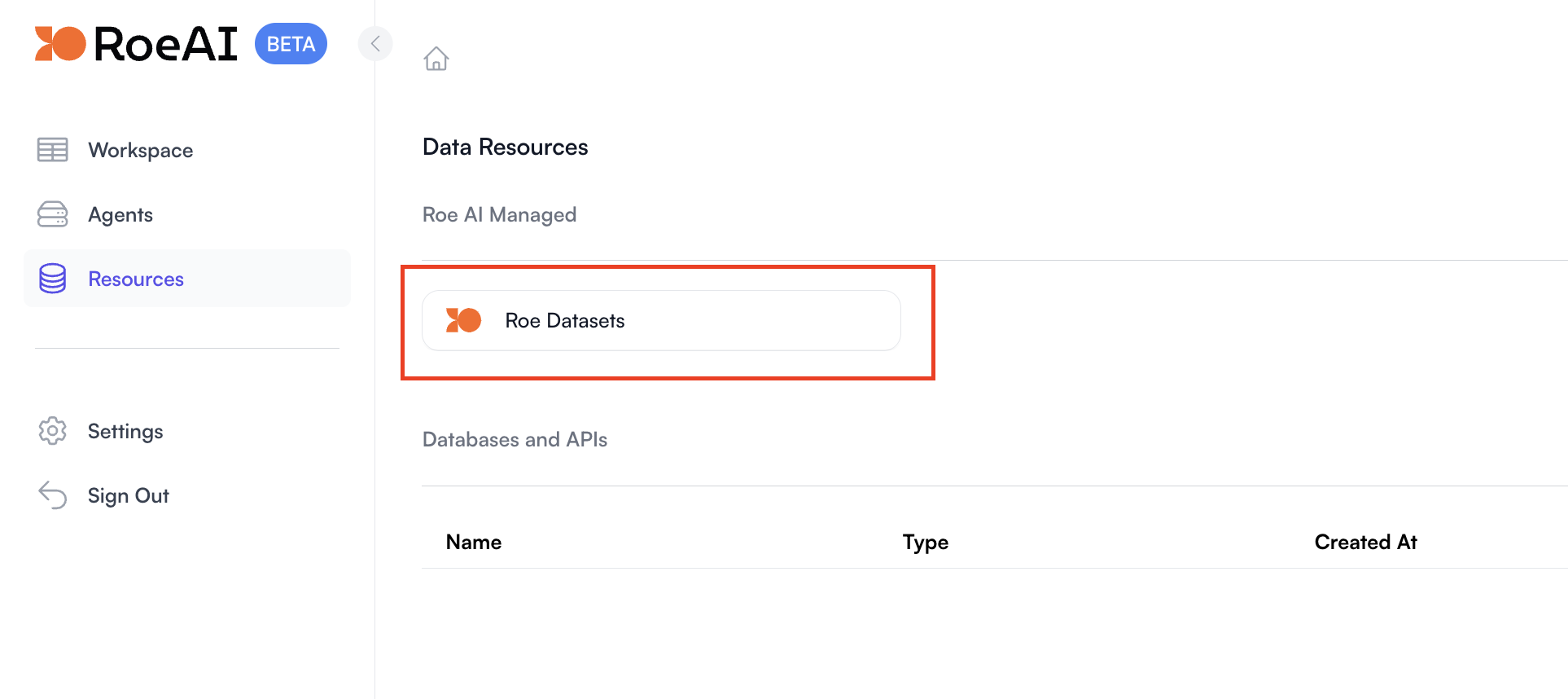 For the purpose of this quickstart, we will use the same invoice PDF file as `invoice.pdf` file in the `invoice-extraction-example` dataset. Go to that dataset and download the file first. Then upload to the `default` dataset.


 ## View Your Data
Click on the Workspace tab to go to ROE SQL workspace.
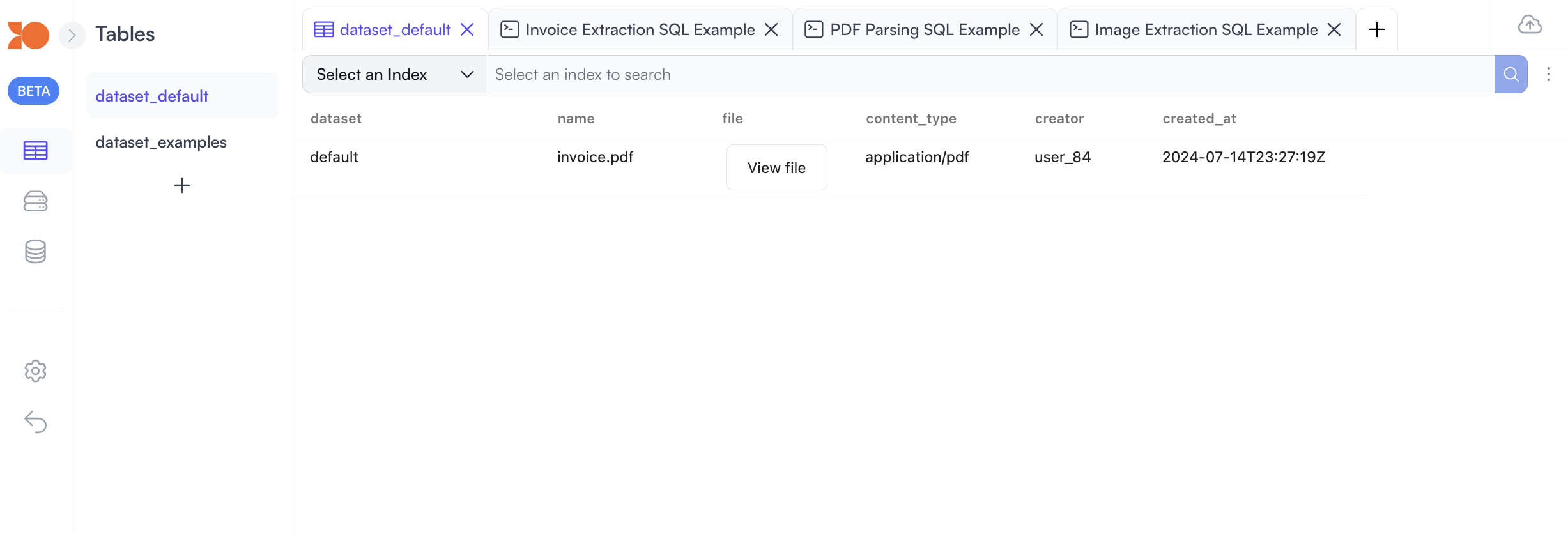
A default table called `dataset_default` has been created for you. Any new
files uploaded to the `default` dataset will automatically be added to this table as well. You can check the table by clicking `dataset_default` table in the table list.
## View Your Data
Click on the Workspace tab to go to ROE SQL workspace.
A default table called `dataset_default` has been created for you. Any new
files uploaded to the `default` dataset will automatically be added to this table as well. You can check the table by clicking `dataset_default` table in the table list.
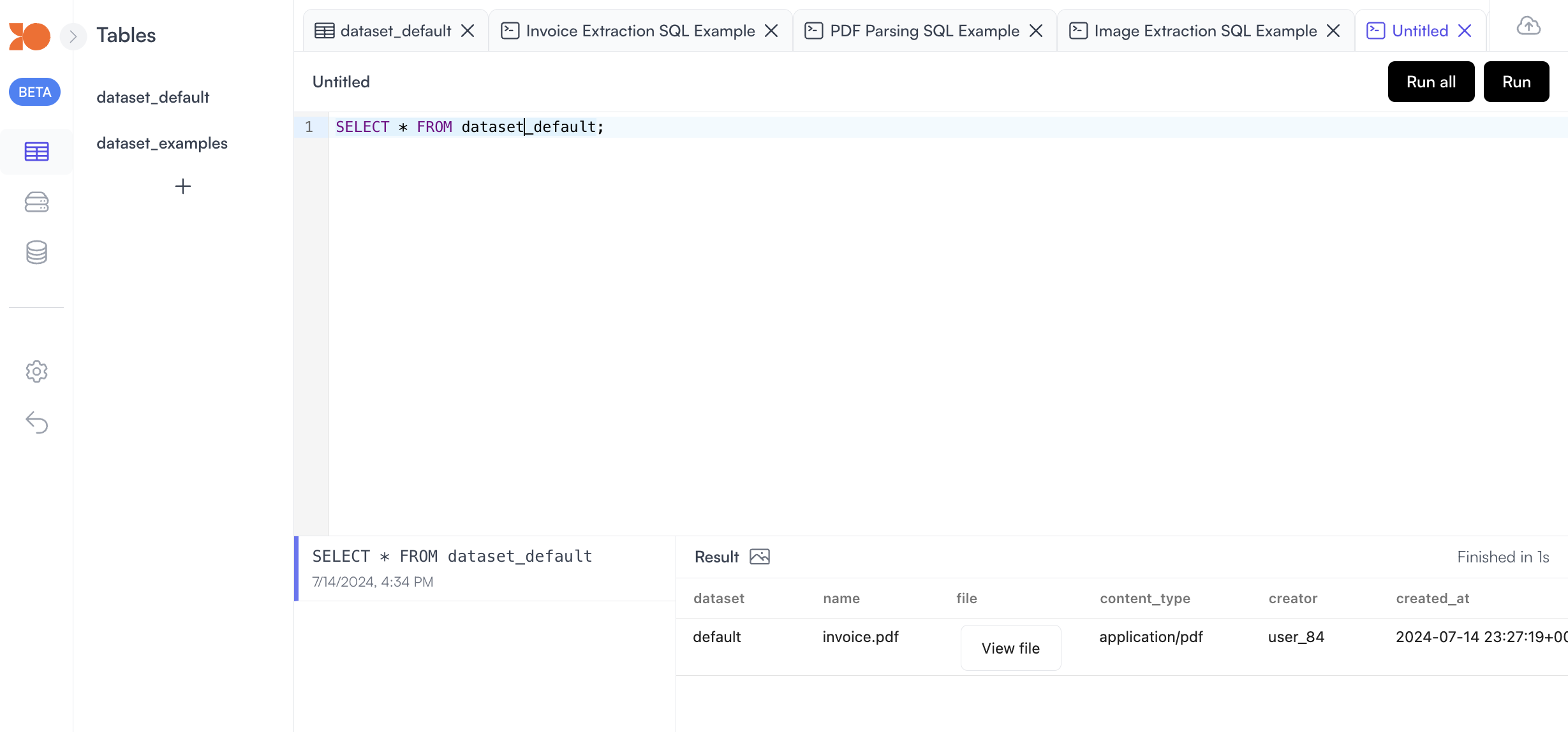
 Or you can run the following SQL query to view the data in a new worksheet tab:
```sql theme={null}
SELECT * FROM dataset_default;
```
Or you can run the following SQL query to view the data in a new worksheet tab:
```sql theme={null}
SELECT * FROM dataset_default;
```
 ## Process Your Data
Now that you have uploaded your data, you can start processing it using the
built-in functions. For example, you can extract information from the invoice
PDF with the following SQL query:
```sql theme={null}
-- You're shown three example worksheets for three different use cases. Take a moment to read through each one!
-- This worksheet extracts information from the invoice PDF as specified by the return format requested. Try running it!
SELECT name, file, extract_from(
'returns following structure: {
from: ,
recipient: ,
line_items: [
{
name:
## Process Your Data
Now that you have uploaded your data, you can start processing it using the
built-in functions. For example, you can extract information from the invoice
PDF with the following SQL query:
```sql theme={null}
-- You're shown three example worksheets for three different use cases. Take a moment to read through each one!
-- This worksheet extracts information from the invoice PDF as specified by the return format requested. Try running it!
SELECT name, file, extract_from(
'returns following structure: {
from: ,
recipient: ,
line_items: [
{
name: -
quantity:
-
cost:
-
},
],
subtotal:
tax:
total:
}', -- extract_from() uses the Default Extraction agent, so you don't need to specify an agent
file
) FROM dataset_examples WHERE dataset='invoice-extraction-example'; -- You can run on all datasets in the table or a specific one (what we do here)
```
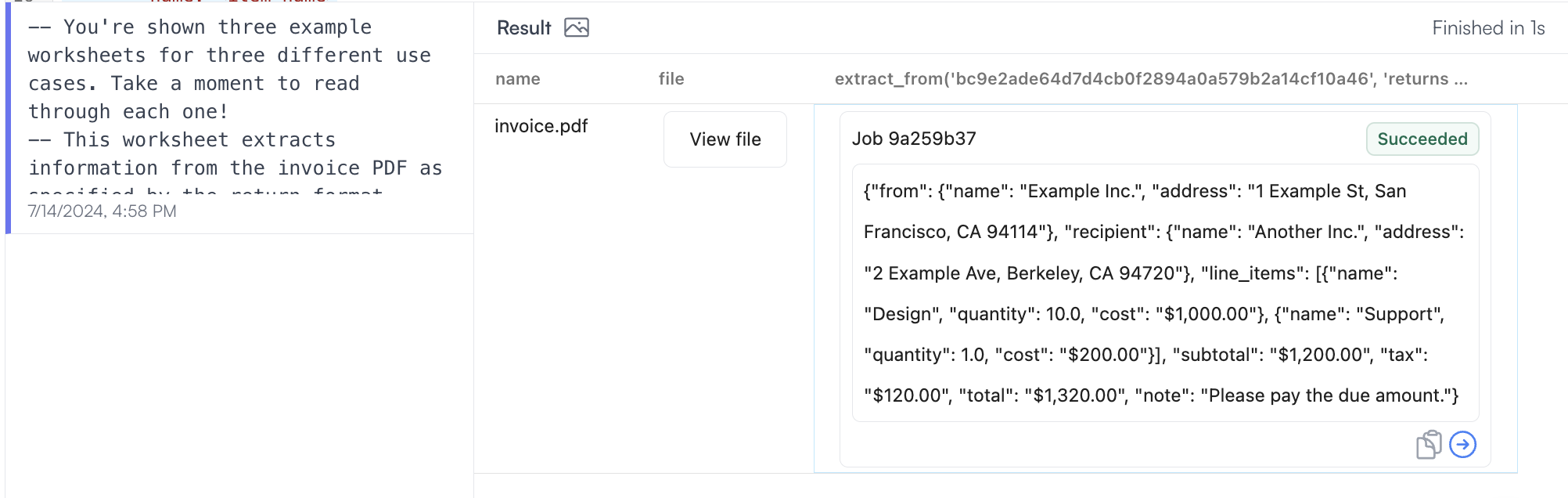
The result of the `extract_from` function is a reference to the async job. Once
the job is completed, you can view the extracted data in the worksheet by clicking on the Job ID.
 ## Next Steps
### Learn More About Roe SQL
We are based on clickhouse dialect, learn more about clickhouse SQL dialect in their official
[documentation](https://clickhouse.com/docs).
Also check out our [examples](/database/examples/introduction) to see how you
can use SQL to process your data.
### Learn More About Roe SQL Functions
`extract_from` is just one of the many functions you can use to process your
data. We have a variety of functions available to help you process your data
with Roe Agents. You can learn more about the functions available in the
[Functions](/database/functions/introduction) section.
## Next Steps
### Learn More About Roe SQL
We are based on clickhouse dialect, learn more about clickhouse SQL dialect in their official
[documentation](https://clickhouse.com/docs).
Also check out our [examples](/database/examples/introduction) to see how you
can use SQL to process your data.
### Learn More About Roe SQL Functions
`extract_from` is just one of the many functions you can use to process your
data. We have a variety of functions available to help you process your data
with Roe Agents. You can learn more about the functions available in the
[Functions](/database/functions/introduction) section.