> ## Documentation Index
> Fetch the complete documentation index at: https://docs.roe-ai.com/llms.txt
> Use this file to discover all available pages before exploring further.
# Multimodal Insights
> Extracts insights and structured information from text and images using AI vision models.
## Multimodal Insights Engine Overview
The Multimodal Insights Engine is a unified engine that can extract structured information from both text and images. It replaces the previous separate Text Insights and Image Insights engines, providing a single powerful interface for multimodal content analysis.
## Engine Inputs
The Multimodal Insights Engine Configuration has the following parameters:
* **text**: *optional.* Text content to analyze and extract information from. Leave blank to extract from images only.
* **images**: *optional.* Image URLs or file IDs (comma/newline/whitespace separated). Leave blank to extract from text only.
* **instruction**: *optional.* Instructions describing what to extract from the content. Defaults to empty.
* **model**: *optional.* The AI model to use (default: `gpt-4.1-2025-04-14`).
* **reasoning**: *optional.* Reasoning effort level for the model. Options: `low`, `medium`, `high`.
* **output\_schema**: *required.* JSON schema defining the structure of data to extract. Follows the standard [JSON schema specification](https://json-schema.org/).
At least one of **text** or **images** must be provided.
See [Template Strings](/agents/input-definition#template-strings) for dynamic parameter configuration.
## Engine Output
The output will be a JSON value matching the structure specified in the **output\_schema**.
## Text Extraction Example
Extract structured information from text content:
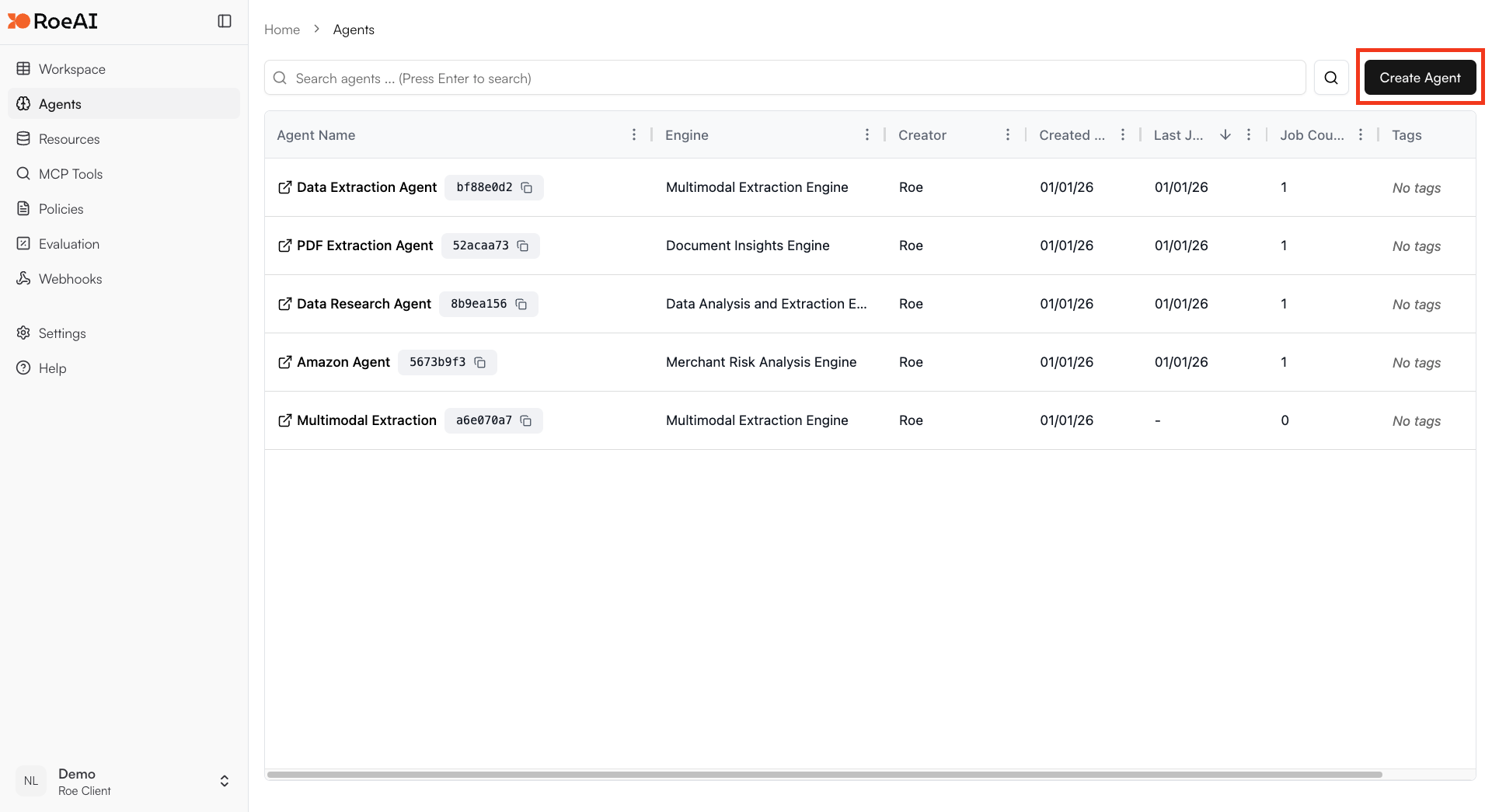
Click on the "Add Agent" button in the top right corner of the Agents page.
 Enter a name and an optional description of your Agent.
\$ starts a template string
* **text**: \$text
* **images**: (leave empty)
* **instruction**: Analyze the text to extract key information and insights
* **model**: gpt-4.1-2025-04-14
* **output\_schema**: Copy and paste the JSON schema below:
```json theme={null}
{
"type": "object",
"properties": {
"title": {
"type": "string",
"description": "Main title or heading"
},
"summary": {
"type": "string",
"description": "Brief summary of the content"
},
"key_points": {
"type": "array",
"items": { "type": "string" },
"description": "List of key points extracted"
}
},
"required": ["title", "summary"]
}
```
Hit the **Create** button.
Create a new job and provide text content to analyze. The engine will extract structured information based on your output schema.
## Image Extraction Example
Extract structured information from images:
Click on the "Add Agent" button and enter a name for your Agent.
\$ starts a template string
* **text**: (leave empty)
* **images**: \$images
* **instruction**: Analyze the image and describe what you see in detail
* **model**: gpt-4.1-2025-04-14
* **output\_schema**: Copy and paste the JSON schema below:
```json theme={null}
{
"type": "object",
"properties": {
"description": {
"type": "string",
"description": "Detailed description of the image content"
},
"objects": {
"type": "array",
"items": { "type": "string" },
"description": "List of objects identified in the image"
},
"text_content": {
"type": "string",
"description": "Any text visible in the image"
}
},
"required": ["description"]
}
```
Hit **Create**, then run a job by providing an image URL to analyze.
## Combined Text and Image Analysis
You can also provide both text and images for combined analysis. The engine will process both modalities together.
Enter a name and an optional description of your Agent.
\$ starts a template string
* **text**: \$text
* **images**: (leave empty)
* **instruction**: Analyze the text to extract key information and insights
* **model**: gpt-4.1-2025-04-14
* **output\_schema**: Copy and paste the JSON schema below:
```json theme={null}
{
"type": "object",
"properties": {
"title": {
"type": "string",
"description": "Main title or heading"
},
"summary": {
"type": "string",
"description": "Brief summary of the content"
},
"key_points": {
"type": "array",
"items": { "type": "string" },
"description": "List of key points extracted"
}
},
"required": ["title", "summary"]
}
```
Hit the **Create** button.
Create a new job and provide text content to analyze. The engine will extract structured information based on your output schema.
## Image Extraction Example
Extract structured information from images:
Click on the "Add Agent" button and enter a name for your Agent.
\$ starts a template string
* **text**: (leave empty)
* **images**: \$images
* **instruction**: Analyze the image and describe what you see in detail
* **model**: gpt-4.1-2025-04-14
* **output\_schema**: Copy and paste the JSON schema below:
```json theme={null}
{
"type": "object",
"properties": {
"description": {
"type": "string",
"description": "Detailed description of the image content"
},
"objects": {
"type": "array",
"items": { "type": "string" },
"description": "List of objects identified in the image"
},
"text_content": {
"type": "string",
"description": "Any text visible in the image"
}
},
"required": ["description"]
}
```
Hit **Create**, then run a job by providing an image URL to analyze.
## Combined Text and Image Analysis
You can also provide both text and images for combined analysis. The engine will process both modalities together.